Mixer
Top
-
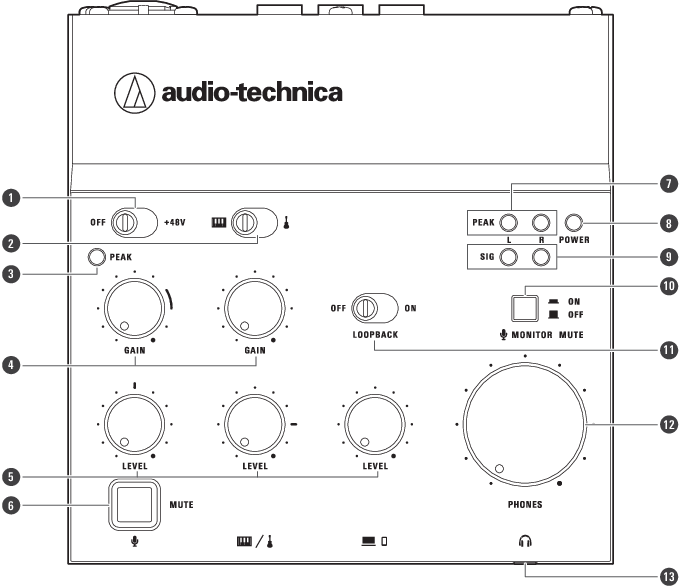
Phantom power switch
Set the switch to +48V to supply +48 V DC phantom power to the XLR plug of the microphone input jack. Set the switch to +48V when connecting a condenser microphone to the microphone input jack.
-
Line input selector switch
If two instruments are connected to the line input jacks, use this switch to select the desired input: GUITAR (
 ) or KEYBOARD (
 ).
). -
Input peak indicator lamp
Lights when the input sound from the microphone is too loud. When this lamp lights, turn the gain control knob (GAIN) for the microphone input to the left to decrease the input sound.
-
Gain control knob
Adjusts the input volume. If the peak indicator lamps light frequently, decrease the gain to the point that the lamps light only for an instant at the maximum input.
-
Level control knob
Adjusts the level of the input sound.
-
Microphone mute button
Mutes the microphone input audio. The button lights in red when the microphone is muted.
-
Output peak indicator lamp
Lights in red when the output sound is too loud. To output sound to devices with the appropriate volume, decrease the GAIN and LEVEL until the signal indicator lamps (SIG) light and the input peak indicator lamp lights only for an instant at the maximum input.
-
Power indicator lamp
Lights when power is supplied to this product. To supply power to this product, connect the USB port (USB Type-C) to a computer or connect the USB power port (USB Type-C) to a USB power adapter (sold separately) that is connected to a household outlet.
-
Signal indicator lamp
Lights in green when the level of the sound output to a device is −15 dBFS or higher.
-
Microphone monitor mute button
Mutes the microphone input audio in the monitoring sound output from the headphone jack.
-
Loopback switch
Set this to ON to make a stereo mix of the sound playing on the computer, smartphone/tablet, or other device and the sound input to this product and output this mix to the device.
-
Headphone volume control knob
Adjusts the volume of the headphones connected to the headphone output jack. Turn the knob to the left to decrease the volume and to the right to increase the volume.
-
Headphone output jack
This is a 3.5 mm (1/8”) stereo mini jack for the monitoring headphones. It allows you to monitor the mixed sound.
Back
-
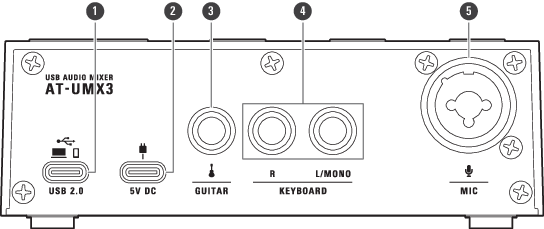
USB port (USB Type-C)
Connects a computer, smartphone/tablet, or similar device to communicate data with.
- If you are using a smartphone/tablet, you have to supply power to this product separately. Use a USB power adapter (sold separately) to supply power to the “
 USB power port (USB Type-C).”
 - When a computer is connected to this product, power is supplied from the computer via the USB cable, so you do not have to connect the “ USB power port (USB Type-C).”
- If you are using a smartphone/tablet, you have to supply power to this product separately. Use a USB power adapter (sold separately) to supply power to the “
-
USB power port (USB Type-C)
Use a USB power adapter (sold separately) to supply power to this product from a household outlet.
- You have to connect this port when a smartphone/tablet is connected to the “
 USB port (USB Type-C).” When a computer is connected to this product, power is supplied from the computer via the USB cable, so you do not have to connect the “ USB power port (USB Type-C).”
 - Before connecting the adapter to this port, connect a smartphone/tablet to the “ USB port (USB Type-C).” If you connect the USB power adapter first, the smartphone/tablet may not be recognized.
- You have to connect this port when a smartphone/tablet is connected to the “
-
Line input jack (
)Connects an electric guitar, electric bass, or other such instrument with high impedance.
- This jack is Hi-Z compatible.
- Use a 6.3 mm (1/4”) monaural standard plug (unbalanced connection). Operation will not be correct if the connection is balanced.
-
Line input jack (
)Connects a stereo line sound device such as an electric keyboard or an audio device. Use the L/MONO jack when connecting a monaural output device. In this situation, input to the L/MONO jack is output not only from the left channel but also from the right channel.
- Use a 6.3 mm (1/4”) monaural standard plug (unbalanced connection). Operation will not be correct if the connection is balanced.
-
Microphone input jack
Connects a microphone. This jack is compatible with XLR plugs and 6.3 mm (1/4”) monaural standard plugs.
Input settings and control
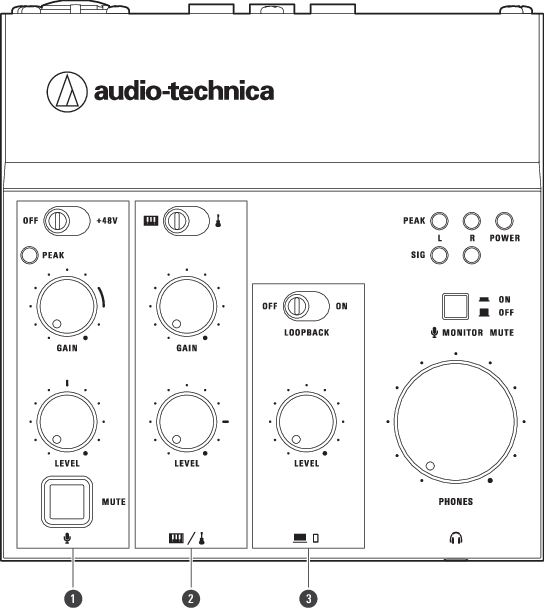
This section indicates the switches and buttons that can be set and the knobs that can be adjusted for microphone input, line input, and USB input.
-
Microphone input settings and control
Use these parts to adjust the volume level of the microphone connected to the microphone input jack, to turn the phantom power supply on/off, and mute the microphone.
-
Line input selection and control
Use these parts to adjust the volume level of the instruments connected to the line input jacks and to switch between inputs (instruments).
-
USB input setting and control
Use these parts to adjust the volume level of the computer or smartphone/tablet connected to the USB port (USB Type-C) and to turn the loopback function on/off.