Basic operations on Settings & Maintenance screen
-
Select a microphone in the main area.
The microphone settings screen appears.
-
Click the area in the red box.
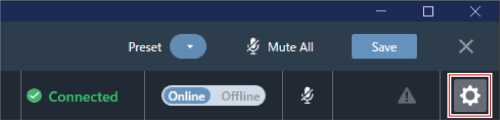
The Settings & Maintenance screen appears.
-
Open the settings menu and click on a setting.
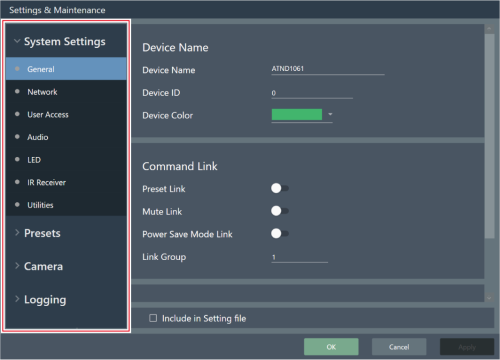
-
For settings requiring text input, click the field for the setting to input text.

-
For settings requiring selection from a pull-down menu, click the field for the setting and make a selection from the pull-down menu.
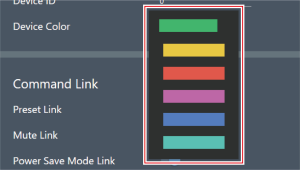
-
For settings requiring use of a switch, click the switch.
- With each click, the setting switches between ON (blue) and OFF (no color).

-
Click “Apply”.
- Click “Cancel” to cancel the setting.

The setting will be applied.
-
Click “OK” to exit.
